First, the usual way and why I wanted something different
Most TradingView automation tutorials follow the same route: indicator signal, TradingView alert, webhook, third-party trading bot, and finally an exchange order. It makes sense, but it has a catch. TradingView's free Basic plan has no technical alerts for indicators or strategies, and no webhook notifications.
Then there are services such as 3Commas that add another subscription between your signal and the exchange. I wanted to see whether we could skip both dependencies. Not by breaking the trading rules, but by changing how the signal reaches the execution side.
The idea: turn a trading signal into colors
Pine Script can't directly send a signed Binance API request. And TradingView's chart is drawn graphically, so a Chrome extension cannot reliably read the BUY and SELL labels as ordinary webpage text.
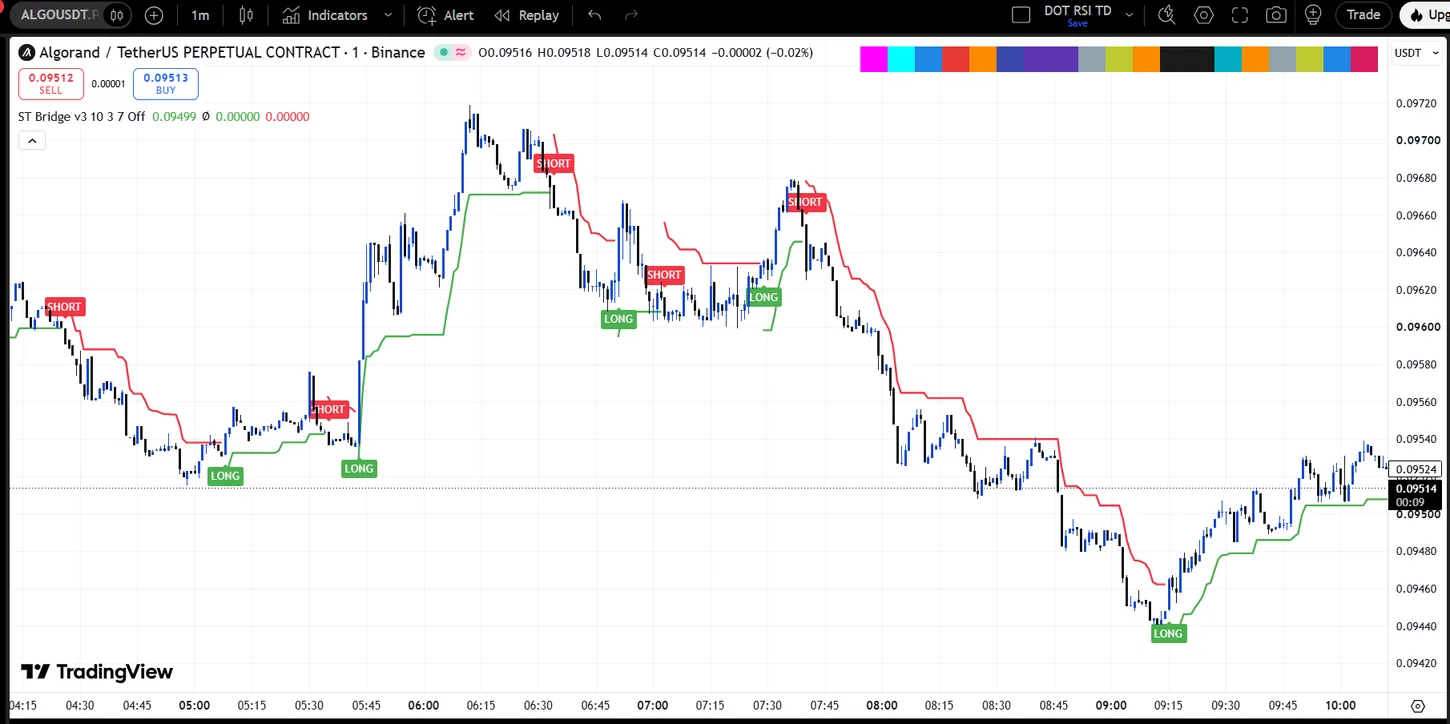
But Pine Script can draw a fixed-position table. I used that to display a row of 19 colored cells at the top of the chart. They're not decoration. Each cell represents part of a compact message.
The message includes the intended trade action, the signal time, a channel number, a symbol fingerprint and a checksum. The extension captures a screenshot of the visible TradingView chart, finds the strip and decodes it back into an instruction. It doesn't use OCR, TradingView alerts or webhooks.
It's a different way of doing things, but it has a practical advantage: the indicator's signal logic and the visual communication adapter are separate. We can keep the same bridge and connect other Pine Script conditions to it.
Using Supertrend as the first example
I started with the regular Supertrend indicator. The example uses ATR period 10 and factor 3 with TradingView's built-in ta.supertrend(). When the Supertrend direction changes on a confirmed candle, the modified script marks LONG or SHORT and updates the color strip.
This is the Supertrend Visual Bridge example, not the DEMA-source Supertrend reversal strategy I published earlier. The bridge can be adapted to that strategy as well, or to any other script whose source and signal conditions are available.
Its protocol understands four main trading actions:
| Action | What the extension should do |
|---|---|
OPEN_LONG | Check the current position, then open a long. |
OPEN_SHORT | Check the current position, then open a short. |
CLOSE_LONG | Close an existing long, without opening a new short. |
CLOSE_SHORT | Close an existing short, without opening a new long. |
The example uses the LONG and SHORT reversal signals; separate exit actions are available when another script has dedicated close conditions.
The Chrome extension: TradingView to Binance Futures
The second part is a Chrome extension called TV Futures Bridge. It monitors the visible chart, decodes new signals and can send signed requests to Binance USDT-M Futures. I kept the popup focused on a few useful controls: Observe, Demo or Live trading, symbol, USDT position size, leverage, API credentials, connection testing and an automatic-trading switch.
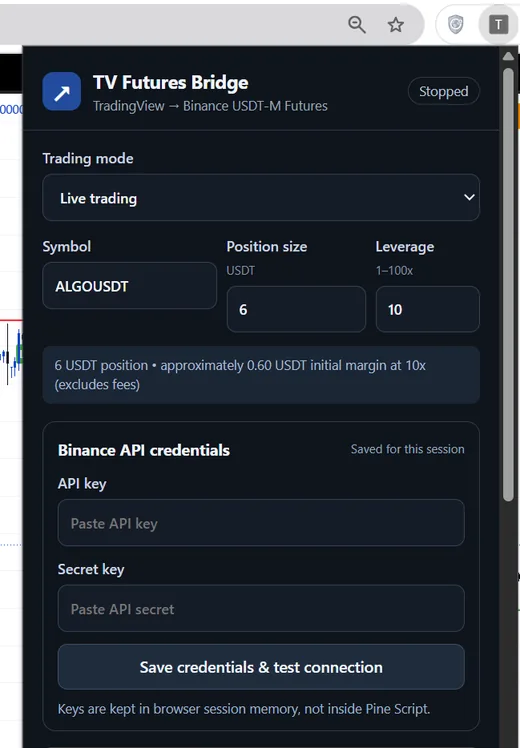
One useful detail is how trade size works. If you enter 10 USDT at 2x leverage, that means a target position worth 10 USDT, with roughly 5 USDT initial margin before fees. The extension does not silently increase the position to satisfy an exchange minimum. Binance's contract rules still decide what sizes and leverage are accepted.
There are also position checks and duplicate-signal handling. If the new signal is opposite to an existing position, the intended flow is to close the old position, confirm the exchange state and only then open the new one. If an order outcome is uncertain, the extension pauses instead of blindly repeating it.
How to try the free setup
- Get the Chrome extension. Open the free extension on GitHub, download the repository ZIP and extract it. In Chrome, go to
chrome://extensions, enable Developer mode, click Load unpacked, and choose theextensionfolder. - Download the Supertrend script. Use the free Pine Script v6 download near the end of this article. Open Pine Editor in TradingView, paste it and add it to a Binance USDT-M chart. The colored strip should be visible at the top-right.
- Match the settings. Select the same Binance symbol and visual channel in the extension. Keep the TradingView tab active and the strip fully visible.
- Test chart detection. Start in Observe only mode. Open Chart diagnostics & activity and use Scan chart now to check whether the extension finds and decodes the strip.
- Move to Binance Demo. Enter your Binance Futures Demo API credentials, choose a supported position size and leverage, then test the connection. Use the manual order controls if you want to test actual Demo exchange execution separately.
- Start monitoring. Click Start automatic trading. The extension ignores the currently displayed signal as its starting baseline and waits for the next new, confirmed signal.
You can also select special VISUAL TEST LONG and SHORT inputs in the Pine script to check screenshot recognition without waiting for a market signal. Those test signals are deliberately blocked from placing orders, even in Live mode. Manual Demo orders are a separate feature.
Does this work with other TradingView indicators?
That's the part I find most useful. The Chrome extension doesn't need a new implementation for every RSI, EMA crossover, breakout or custom Supertrend strategy. It only needs the four standard actions from the Pine Script adapter.
For another indicator, the main work is mapping its existing trading conditions to these inputs:
// Map confirmed conditions from your indicator
bool bridgeOpenLong   = buyCondition
bool bridgeOpenShort  = sellCondition
bool bridgeCloseLong  = exitLongCondition
bool bridgeCloseShort = exitShortCondition
These are example names, not a standalone working script. The reusable adapter and examples are in the project source. You generally need access to an indicator's Pine Script code to add the bridge; protected indicators can't necessarily be modified.
Can we connect Bybit or another exchange?
The current extension supports Binance USDT-M Futures, including Demo and Live connection modes. Bybit and other exchanges could be added by implementing separate API adapters for their authentication, position modes and order rules. That expansion is possible, but Bybit execution is not included in the current release.
Is this actually free?
Yes, the Pine Script and Chrome extension source are free. The visual bridge doesn't require TradingView technical alerts or webhook access, and you don't need a hosted bot or another subscription just to relay signals.
There are practical limits, though. Exchange fees still apply. More importantly, the browser must remain open with TradingView active and visible. A sleeping computer, hidden chart, changed layout or missed screenshot can mean a missed trade. This is a browser-based experiment, not a reliable unattended 24/7 trading server.
The repository includes synthetic visual-decoder tests and mocked Binance API tests. Those are useful for development, but they do not prove complete live exchange execution. This prototype does not automatically place protective stop-loss or take-profit orders, so Binance Demo Trading is the appropriate place to test it before considering real money.
Download the Supertrend Visual Bridge for free
The complete Supertrend example, including the 19-cell color signal adapter.
Download free Pine Script ↓Get the Chrome extension and setup instructions on GitHub →
Want to automate your own TradingView indicator or strategy?
If you already have a Pine Script that generates buy and sell signals, I can help connect its logic to the visual bridge, map the correct entry and exit behavior and adapt the integration for your trading setup. This can also be extended to other exchanges with the appropriate exchange-specific development.
Need help with installation, chart configuration, signal logic or a custom TradingView-to-exchange integration? Feel free to contact me.